
In FCOps, navigate to Transfers & Conversion → PID Enquiry from the main navigation menu.
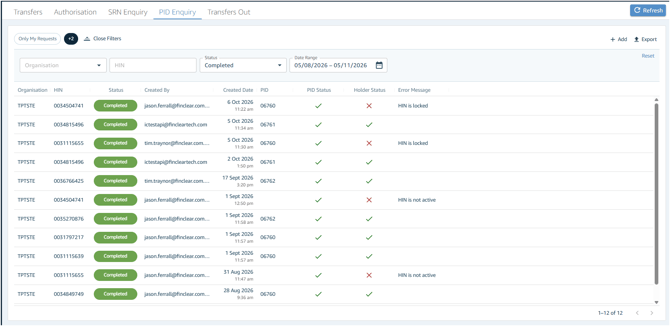
The landing page loads showing existing PID search requests (screenshot below as an example)
Create a PID Search
Step 1: Open PID Enquiry
Go to Transfers & Conversion → PID Enquiry in the main navigation menu.
Step 2: Add a new search
Click + Add.
Step 3: Enter the details
- Org Code: Select your organisation (eg: TPXXXX)
- HIN: Enter the HIN.
⚠️ Include leading zeroes. A HIN is always 10 digits. For example, enter 0012345678, not 12345678.
Step 4: Save
Click Save. The request status shows as Submitted while CHESS processes it.
Step 5: Check the result
Refresh the page to see the result.
When it’s returned, the grid shows the PID, PID Status (✓/✗) and Holder Status (✓/✗)
(✓/✗) - Tick means active a X means HIN is not active (i.e HIN maybe locked) Error Message will show if Holder status = X
What the request statuses mean
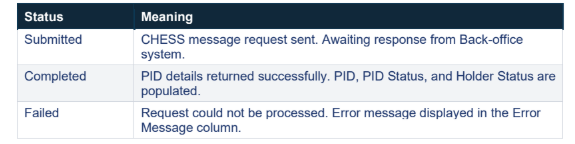
⚠️ Failed - doesn't mean it could not be processed, It means HIN wasn't found. Error message is displayed in the error message column.
How to view PID search details
-
The detail view shows all fields including the full error message (if any) and the returned PID and holder status data.
How to filter the landing page
Quick filter
- Click Only my request to show only the requests you created. Click it again to remove the filter.
Advanced filters
- Click More Filters to open the filter panel.
- Filter by Organisation (if you have more than one), HIN, Status and/or Date Range.
- Click Reset to clear all filters.